

Customers give you their details in the middle of a conversation: "my email is ana@example.com", "we are in Lisbon", "invoice it to my company, Northwind". Data to the CRM, an automation of Decisions, picks those up and fills the contact's empty fields with them, so your team does not have to copy them by hand.
It only fills fields that are empty. It never overwrites what is already there.
1. Choose the fields it may fill
- In your dashboard, go into your WhatsApp number and click Decisions.
- Under Data and sales, on the Data to the CRM card, click Choose fields.
- Under Fields it may fill, tick the ones you want: Email, Alternative phone, Company, Job title, Company website, Tax ID, Address, Postal code, City and Country.
- To add one of your own contact fields, type its name under Custom field and click Add: letters, digits or underscore, up to 30 characters. You can choose up to 20 fields in all.
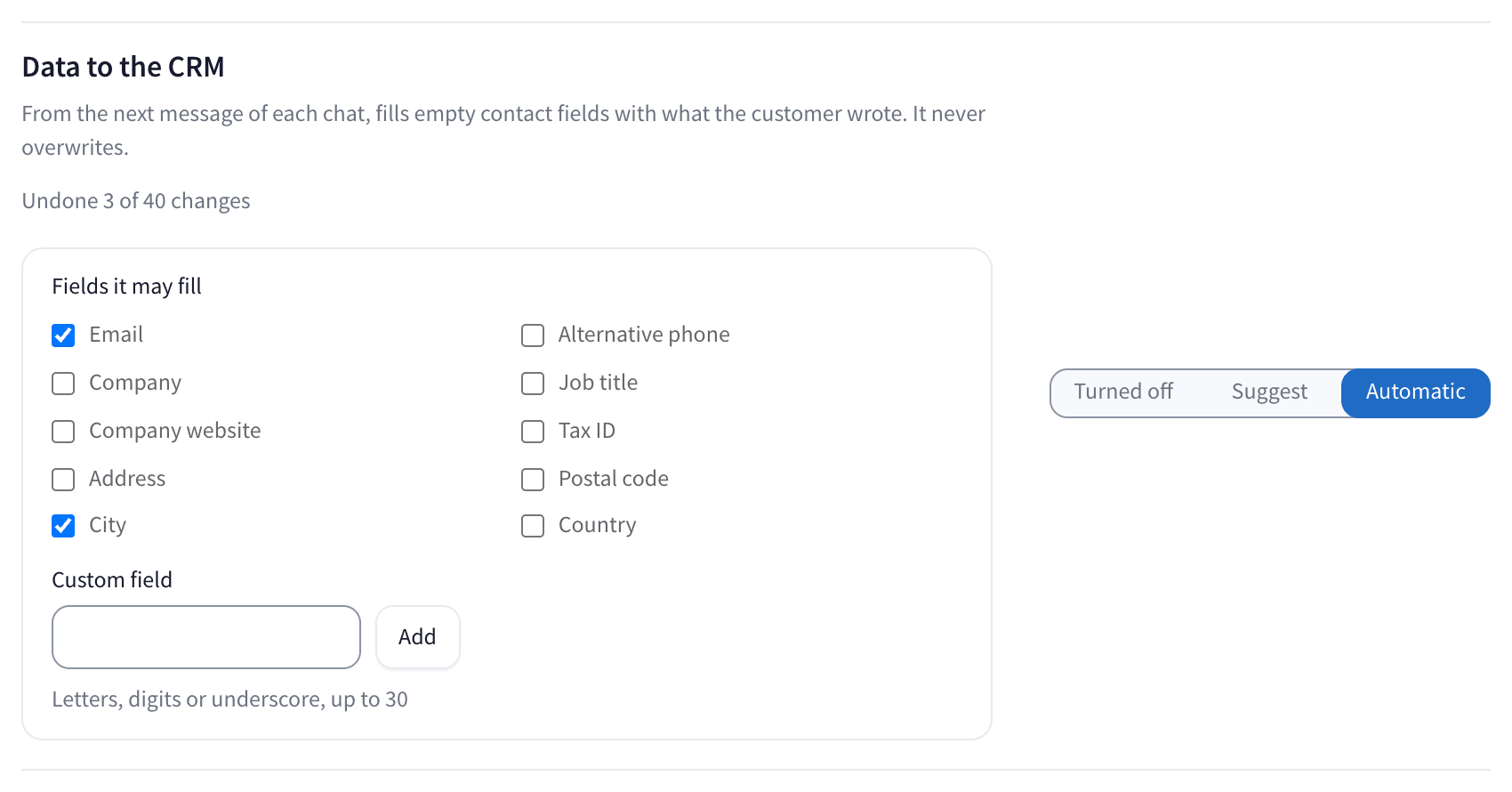
Until you choose at least one field, the card says Choose which fields it may fill and does nothing.
2. Choose the mode
- Suggest. A suggestion appears in the chat, for example Fill Email, and someone clicks Fill fields or Dismiss.
- Automatic. It fills the field itself when it is sure, and the conversation shows "The autopilot updated contact info" with Undo for 24 hours.
What it takes, and what it leaves
- Only what the customer wrote, word for word, in this conversation. An email or a phone number may come from an earlier conversation with the same customer.
- Never your own details. A value your team also wrote, your business's own details, or an address on your own domain is not taken.
- Only clean values. A country is saved as its country code. Free text that does not fit a field is left out.
- Checked again before writing. If someone fills the field in between, it is left as they wrote it.
Undo it
Click Undo on the line in the conversation, or in the history, within 24 hours. The field it filled is emptied. A field someone edited afterwards stays as they left it.
Questions
Will it change an email we already have? No. It only fills empty fields, and it never overwrites.
Which customers does it read? Only one-to-one chats, from the next message of each one. It does not go back over earlier chats.
Can it fill a field for a group? No. Groups are never read.